
Find what you need (click to jump to section)
- Why adding text to photos = Gold
- The quick fix: iPhone’s built-in text tool
- From quick-fix to amazing results: Meet Bazaart’s AI tools
- Your Markup tool vs. Bazaart: When to use what
- 2025’s Hottest photo and text trends
- FAQ
- Start your next photo adventure
Know those photos that just hit different? That tell a story? Wish you could create images like that too?
Adding text to your photos is a powerful way to hook your audience and create a buzz. Whether you’re launching a new product or sharing a casual glimpse into your day, adding the right title or caption can help you connect with your audience on a deeper level.
Let’s dive into the easiest ways to add text to photos on iPhone.
Why adding text to photos = Gold
Photos are all about creating that instant connection. Pair even a simple visual with the right words, and your message becomes unforgettable. Know those product shots with perfectly placed price tags? Or those jaw-dropping before-and-after photo transformations? That’s the magic of text that clicks.
Top content creators are already on this trend – why not join them and make your content just as engaging?
Here are five popular ways creators are doing it:
- Strategically highlighting product prices
- Sharing dramatic before/after reveals
- Making share-worthy story highlights
- Creating hilarious memes (let’s face it, we all want them)
- Motivating and inspiring with powerful quotes
The quick fix: iPhone’s built-in text tool
If you’re looking for an easy way to get started, iPhone’s built-in text tool, Markup, is the mini design studio you never knew you had. It’s a simple, handy, and reliable way to add text to iPhone photos with just a few taps.
Here’s how to use it:
- Open your photo in the Photos app
- Tap Edit, then the Markup icon (it looks like a pen tip inside a circle)
- Tap the Add icon (+) to add text
- Add your text and drag it to the perfect spot
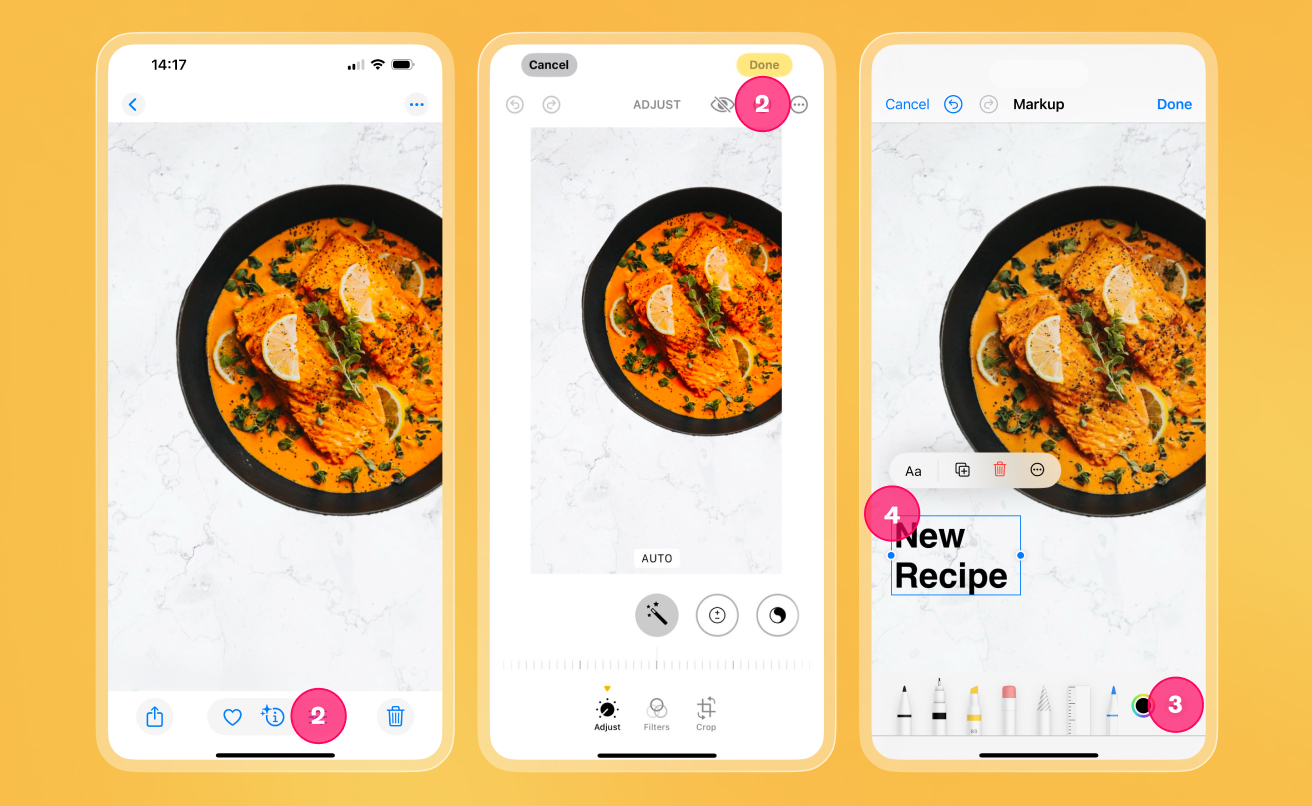
Pro tip: Use pinch gestures to size your text or two fingers to rotate it. For more great tips, check out Apple’s mini-guide on adding text to iPhone.
From quick-fix to amazing results: Meet Bazaart’s AI tools
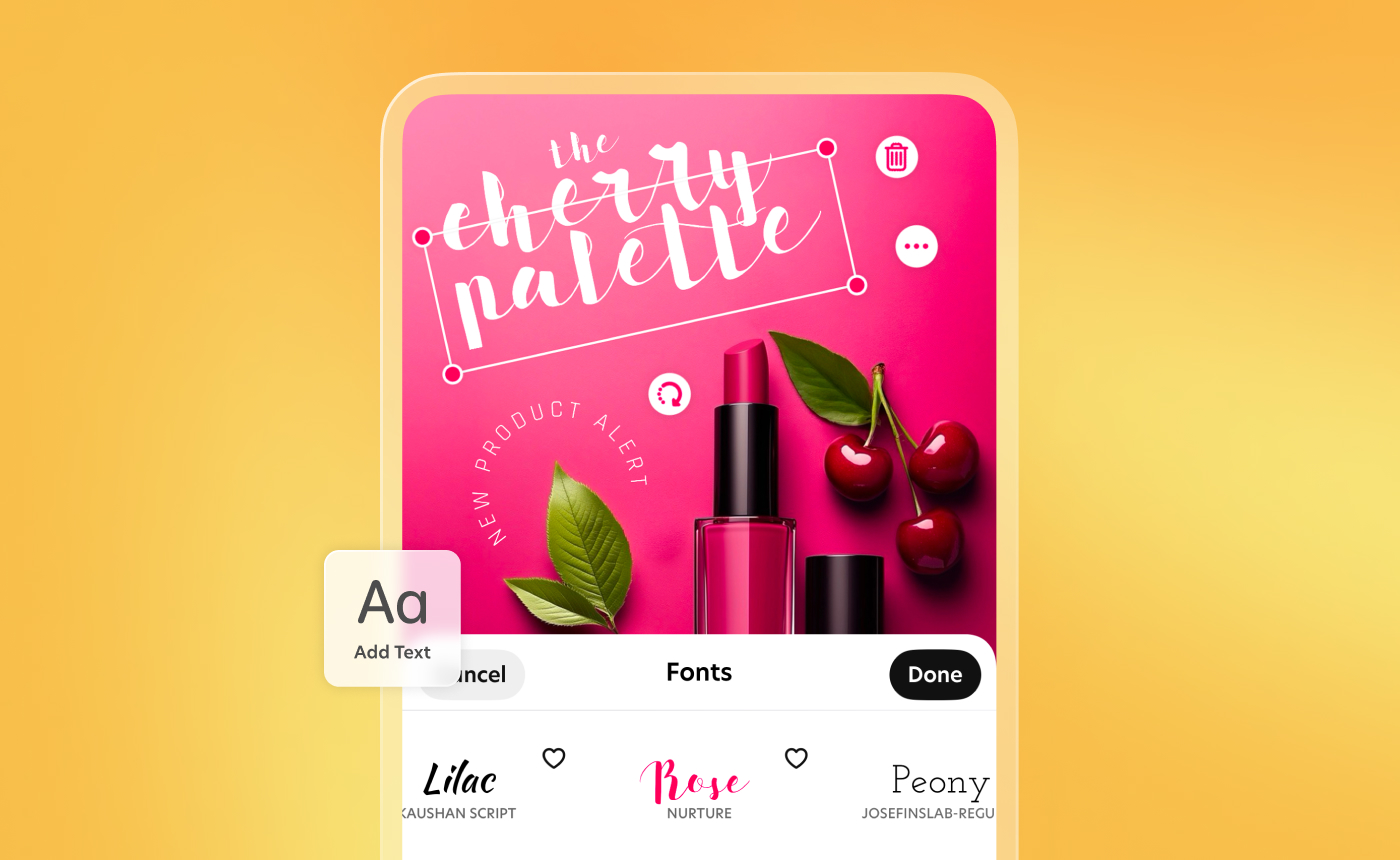
If you’ve maxed out everything Markup can give you and you want to create something special, try Bazaart, a friendly AI-powered photo editing tool and the creative force behind the web’s most powerful photo and text combinations.
Rated 4.8 on the App Store and 4.7 on Google Play, Bazaart is a versatile and intuitive design app for everyone. Here’s a glimpse of what it has to offer:
- Ready-to-drop layouts for product launches
- Beautiful Story and quote templates
- An amazing selection of photo and video designs
- Fonts for business, editorial, and creative designs
- Automated tools to curve, layer, or animate text
Explore Bazaart and discover what you can create.
Your Markup tool vs. Bazaart: When to use what
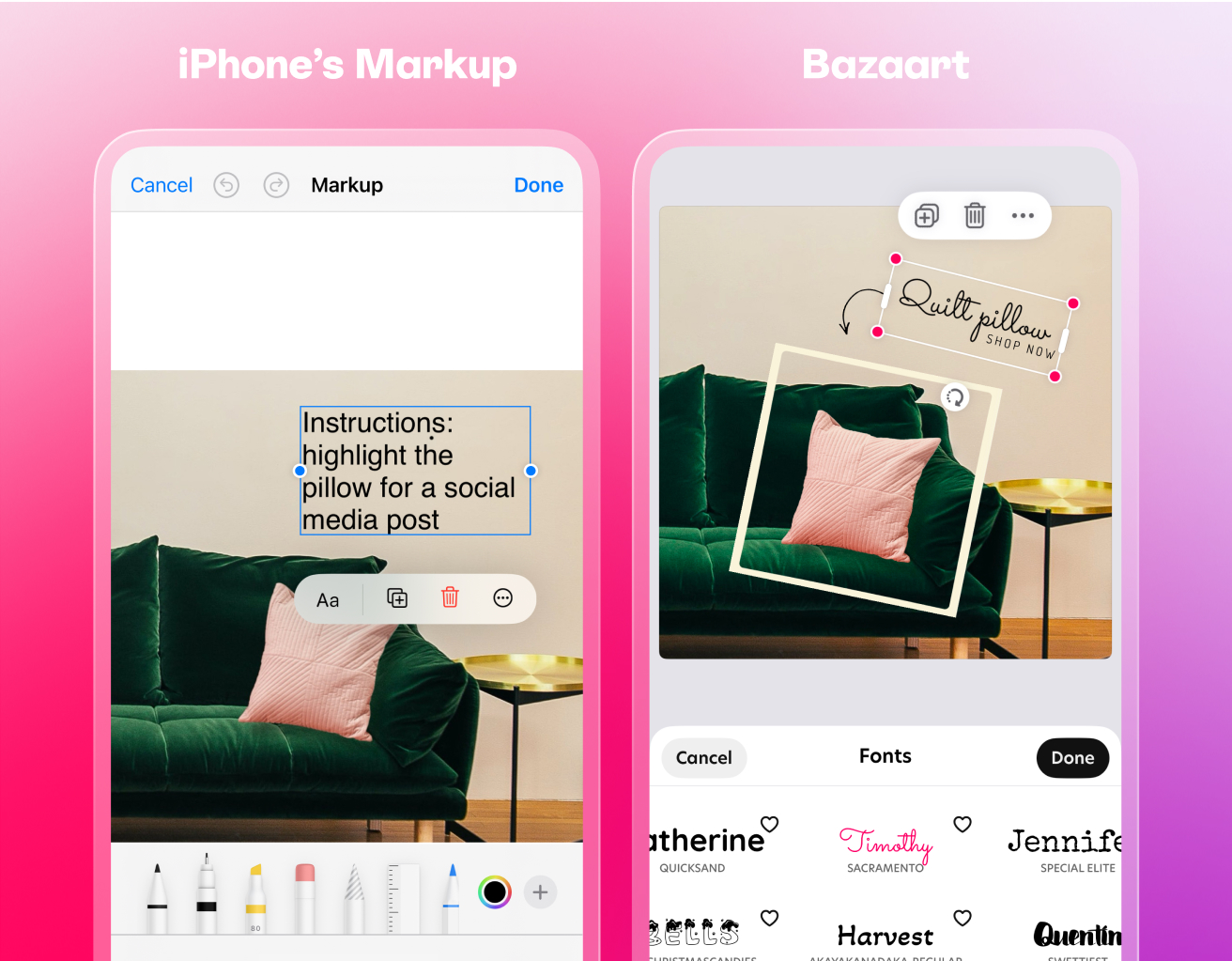
While you can add text to photos using both Markup and Bazaart, choosing the right tool boils down to one simple question: Do you need a quick caption or a polished design? Here’s a quick breakdown to help you decide.
Use iPhone’s Markup when you need to:
- Add basic text when you’re in a rush
- Add simple captions for personal photos
- Add text to a repost or quick photo
Use Bazaart when you need to:
- Create content that converts
- Make a unique visual signature for your brand
- Create series of visuals with a consistent look
- Adjust content for multiple platforms
2025’s Hottest photo and text trends
Looking for fresh photos and text ideas? See some of the most popular combinations creators are using to create more immersive content experiences.
- Add text effects for depth
Top creators use outlines, shadows (both 2D and 3D), and opacity adjustments to create depth and a 3D vibe to draw viewers in. Bazaart offers all these features, and even provides “text styles” to help you achieve this look quickly and easily.
Create depth with text on Bazaart - Fill your text with images for bold creativity
For a real visual punch, fill your text with images. Fashion bloggers are experts at this, creatively blending words and visuals for head-turning designs. Think magazine cover with the title showcasing the model’s face or a bold texture.
Add image-filled text on Bazaart - Add curved text for style
Straight text? Been there. Curved text adds an extra spice to your designs, especially when you’re showcasing circular products or want to add a touch of whimsy. You can also align curved text to follow the lines of an image for a more integrated, smooth look.
Add curved text on Bazaart - Create smart font combinations
The fonts you choose set the tone before anyone reads a word. That’s why it’s important to make both beautiful and smart choices. For example, combining a strong sans-serif font for your main message with a stylish script font for details is great for a “premium but approachable” feel.
Other great font combinations:
* Clean sans + hand-lettered vibes for authenticity
* Chunky headlines + minimalist details
* Super-sized minimal fonts for impact
Create font combinations on Bazaart
FAQ
Yes! While the built-in iPhone tools keep things straight, Bazaart lets you curve and warp text for those eye-catching designs you’re seeing everywhere.
Not if you do it right. Both the iPhone’s native tool and Bazaart maintain image quality. Just make sure to use the right resolution when you export.
The secret is contrast and spacing. Use Bazaart’s shadow features or semi-transparent backgrounds behind your text to make it pop against any image.
With Bazaart, yes – your projects remain editable. With the iPhone’s built-in tool, you’ll want to save a copy before adding text.
Start your next photo adventure
Adding text to your photos doesn’t have to be complicated. Start with iPhone’s built-in tools to get a feel for the basics, then jump into Bazaart when you’re ready to create content that converts and tells your unique story.
Either way, now that you can easily add text to photos on iPhone, you can create beautiful content that stops the scroll.