
Another marketplace to try. Another set of listings to prepare. If Vinted is next on your list, you’re probably looking for a way to get your photos ready without turning it into a whole new project.
The obvious shortcut? Ask ChatGPT to sort out the photos. Upload what you have, ask for clean product shots, and get on with listing.
Then you check the photo rules. The marketplace wants pictures of the actual item, and suddenly those generated versions don’t seem like such a good idea. You start picturing an evening spent editing every photo yourself.
So much for saving time.
But skipping generative AI doesn’t mean doing everything by hand. Bazaart Batch Studio can remove backgrounds, add a plain background and resize your photos together, without generating a new version of your products.
The shortcut doesn’t have to be generative AI
If you’re searching for a Vinted background remover, chances are you already have photos of the clothes you want to sell. You want to get more use out of them, without a generator changing the print, inventing a detail or making worn fabric look new.
Bazaart has been developing photo-editing technology since 2012. Background removal and cutouts were part of our toolkit long before the current generative AI boom. That experience is behind an editing workflow you can use today without asking a generator to redraw your item.
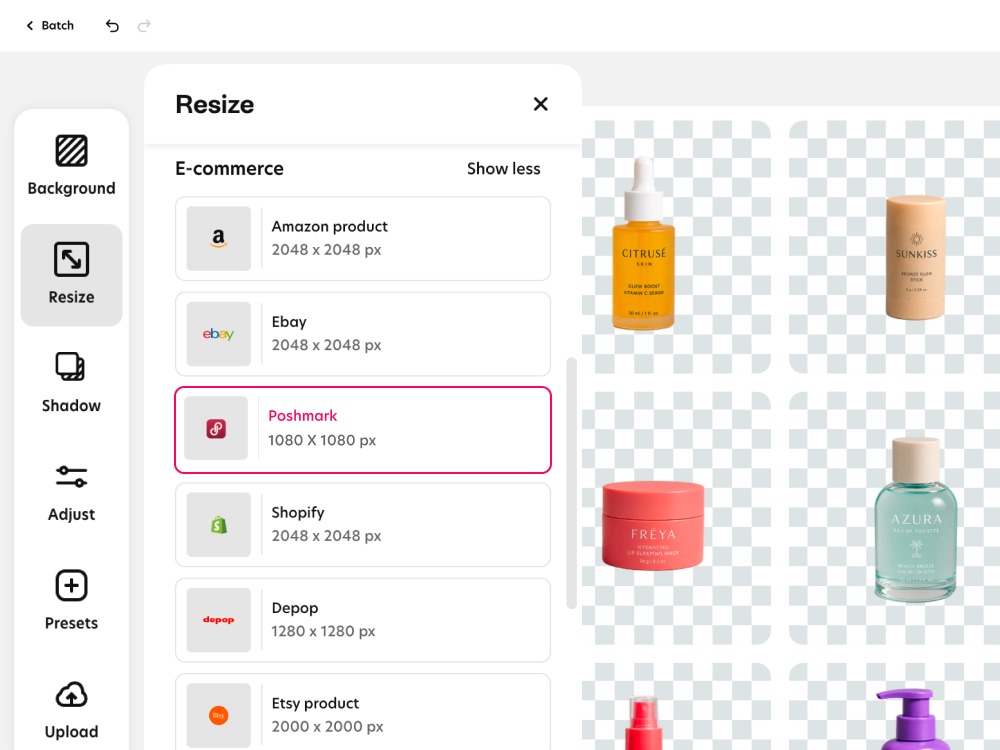
In Batch Studio, the product cutout comes from your original photograph. You can put it on a plain background and resize the image, then apply those edits across the batch. Your job is to review the results, rather than repeat the same editing steps for every photo.
We have newer generative AI tools too. Use them when they suit what you’re making. For this workflow, you don’t need them.
What about Vinted’s photo rules?
There’s one distinction worth making before you batch edit Vinted photos: avoiding generative AI and meeting a marketplace’s rules aren’t automatically the same thing. Vinted’s published catalogue rules prohibit image editing. Check the rules for your market and keep your originals for listings that require unedited photos.
Bazaart gives you the choice of a non-generative workflow. Use the background edits where they’re permitted, whether that’s another marketplace, your own shop or your social posts.
Try it with the photos you already have
You don’t need to photograph your inventory again to find out whether this saves you work. Start with a few existing shots and run them through the batch editor:
- Start with a few existing photos
Choose clear shots that show the whole item. Five photos are enough to try the workflow before working through your inventory. - Upload them to Batch Studio
Open Bazaart Batch Studio and add your photos. Keep a copy of the originals for comparison. - Choose your edits
Remove the backgrounds and select a plain colour, such as white. Set the image size you need and apply the edits across the batch. These steps don’t require generative AI. - Review and download
Compare each result with its original. Check edges, colour, texture and visible wear, and keep separate close-ups of labels and flaws. Once you’re happy with the results, download your photos together.
Choosing a Vinted photo editor
The useful test is your own inventory. Try a few different items together, including something with fine edges or a textured fabric. Compare the results with your originals and check that the details buyers need are still clearly visible.
If you’re looking to bulk edit Vinted photos, check the whole workflow too. Being able to apply an edit across several images, review them and download them together is what saves you from another evening of repetitive work.
Questions? Answers!
Can I remove backgrounds from multiple photos at once?
Yes. Batch Studio lets you apply background removal across multiple photos, then review and download the results together.
Do I have to use generative AI?
No. Background removal, plain-colour backgrounds and batch resizing work without generative AI. You can get a clean, consistent presentation using your original product photos.
Do I need to retake my photos?
Start with what you have. Retake a photo if it’s blurry, cuts off part of the item or misses a detail buyers need to see.
Does Bazaart publish or relist items on Vinted?
No. Bazaart edits your photos. You create and manage your listings in Vinted.
TRY IT WITH WHAT YOU HAVE
Five existing photos are enough to start.
Before you write off another marketplace as too much work, try a few photos in Batch Studio. You’ve already done the photography.